Hello! 
This proposal is about changing the navigation and page hierarchy of the documentation of XWiki.org.
Context
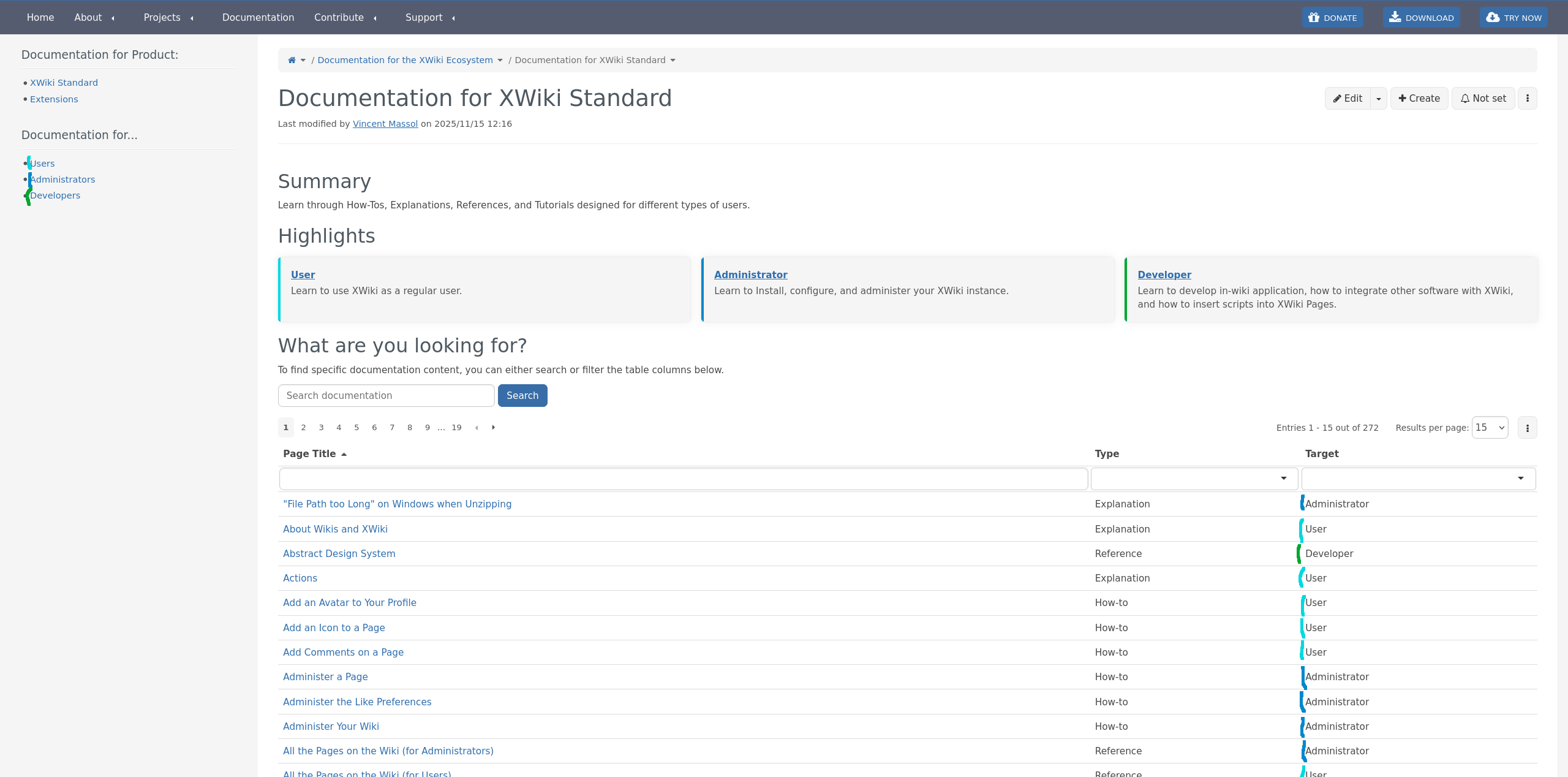
Currently, documentation is splitted by Product (XWiki Standard and Extensions), then by Target (User, Administrator, Developer). The navigation changes based on what Product and Target the user selects. So, after selecting the Product and Target, a list of topics is displayed below in the navigation. This helps users filter the page they might be looking for based on their role in the wiki. Topic pages (top level pages) are pinned in the navigation by relevance.
Documentation is splitted by target before topic. It was not considered before to not have targets before topics. In the forum proposal for navigation tree: Proposal 7, the two options proposed were:
- Option 1: Target > Topic > Type,
- Option 2: Target > Type > Topic.
The majority voted for option 2 of the Navigation Tree proposal.
The target and product concepts were then moved outside of the navigation, (as we currently have), and a third option was proposed:
- Option 3: Nav ordered by Topic only (with 4 extra entries for the types), (see Vincent’s comment.)
Option 3: having documentation split by topic only in the navigation was then agreed: Forum comment, while also having another navigation panel for the targets. To get all documentation for an extension, you need to go on the Extensions wiki page and click on the “Documentation” button (Forum solution).
Advantages of having target > topic
The advantages discussed on the forum highlight why is better to have documentation splitted by topics only, considering the fact that targets are already selected in another panel, before topics. However, some advantages of having Target > Topic:
- Not having an extra level in the navigation under the topic. E.g., avoiding this:
        ├─ Page
        │  ├─ User
        │  ├─ ├─ Edit a Page
        │  ├─ ├─ Simple and Advanced Editing
        │  ├─ ├─ ...
        │  ├─ Administrator
        │  ├─ ├─ Administer a Page
- Readers look for different things, a regular user who just uses the feature in XWiki would not be interested in APIs, etc. Some topics are only relevant to specific targets and don’t have documentation for all roles.
- Improved on-boarding experience for readers.
- Not mixing targets within the same page hierarchy. (Instead, the “Related” section is used in a documentation page to point to additional documentation that could be for other targets).
- This split, combined with the order (User > Administrator > Developer), also conveys the idea of levels of responsibility, where the administrator role includes user capabilities, and the developer is the highest level.
Disadvantages
- Harder to get a complete view of the topic.
- Unable to export a PDF for example for a topic with the full documentation.
- Readers may not always identify with a single target.
Thus, the following is proposed:
Proposal: Have documentation split by topic and only then by target
In “/documentation/xs”, or in “/documentation/extensions” instead of having cards for each target there will be cards for each existing topic, no matter the target (e.g.: “Base”, “User”, Notifications", “Installation”, “Applications”, “Like”, “Data Model”,…etc). When clicking on a topic, there is the possibility to split again documentation by target. Below, option 1 is for adding an extra level in the navigation for each target, option 2 is for adding an extra level also in the page hierarchy, while option 3 is for not adding an extra level for the splitting.
Option 1
Adding a level for the target in the navigation, but not in the page hierarchy, by making the Target level not clickable.
Product
  |_ --- User Topics --- (not clickable)
  |_ topic 1
    |_ subtopic 1
  |_ topic N
  |_ --- Administrator Topics ---
  |_ topic 1
  |_ topic N
  |_ --- Developer Topics ---
  |_ topic 1
  |_ topic N
Advantages:
- Easy to implement.
Disadvantages:
- Creates confusion as some tree nodes are clickable, some are not.
- Breadcrumb different from page hierarchy.
Option 2
Adding a level for the target in the navigation (and page hierarchy).
Advantages:
- Easy to implement, just create new pages for each target for each topic/subtopic.
- Documentation pages have a proper parent, making it not to mix documentation pages for different targets in the navigation or page hierarchy.
Disadvantages:
- Raises the question: “Where in the hierarchy do we introduce the target level?” (e.g., under the topic, or under subtopics?), leading to potential duplicates in the navigation.
- Example:
Target level inserted after subtopic:
├─ Base
│  ├─ Page
│  ├─ ├─ User
│  ├─ ├─ ├─ View a Page
│  ├─ ├─ ├─ Create a Page
│  ├─ ├─ ├─ ..
│  ├─ ├─ Administrator
│  ├─ ├─ ├─ Administer a Page
│  ├─ ├─ Developer
│  ├─ Wiki
│  ├─ ├─ User
│  ├─ ├─ ├─ ..
│  ├─ ├─ Administrator
│  ├─ ├─ ├─ ..
Target level inserted after topic:
├─ Base
│  ├─ User
│  ├─ ├─ Page
│  ├─ ├─ ├─ View a Page
│  ├─ ├─ ├─ Create a Page
│  ├─ ├─ ├─ ..
│  ├─ Administer
│  ├─ ├─ Page
│  ├─ ├─ ├─ Administer a Page
│  ├─ ├─ ├─ ...
- Does not solve the issue of exporting documentation in a single PDF for a topic/subtopic, since content is fragmented across targets.
- Too many levels => too nested.
- Can duplicate subtopics (e.g. “Page”) under each target.
- Not all topics/subtopics have documentation pages for all the targets.
- Targets would be under each topic/subtopic the levels => redundant.
- If we stick with this, there is no path to improve (as in option 3).
Option 3
Not adding a level for the target in the navigation and convey the separation using other methods: having in the page title the target, use some styling (icons). The major advantage of selecting this option is that it allows to build additional improvements on top of it.
Idea 1: Mixing the pages in the navigation
Having the pages just below the topic, without any other level. The breadcrumb will list all topic pages for all targets at the same level. After mixing all the doc pages for all targets under the same topic, we would probably re-group the children pages where it makes sense.
Retired section, check the *Update of proposal* section below instead.
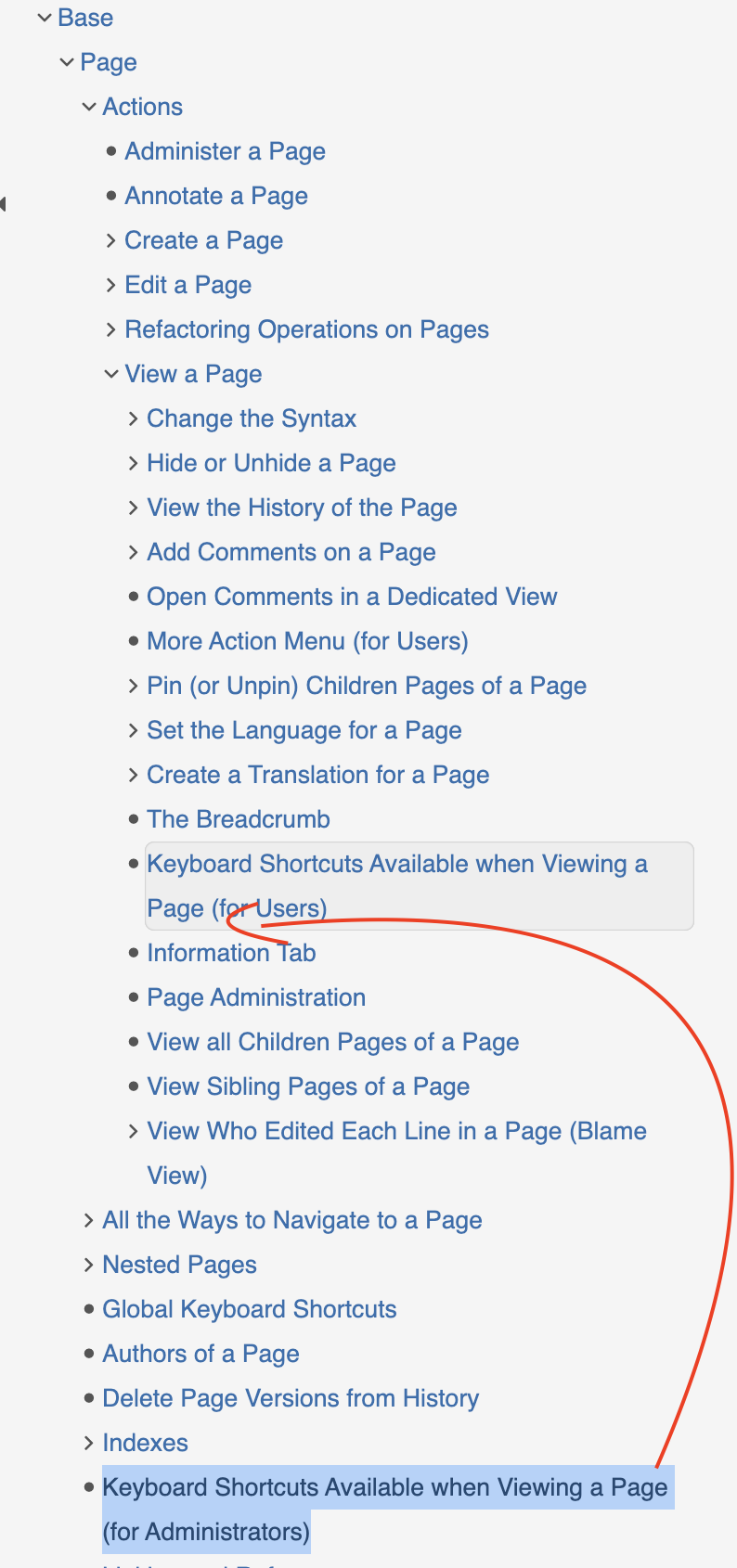
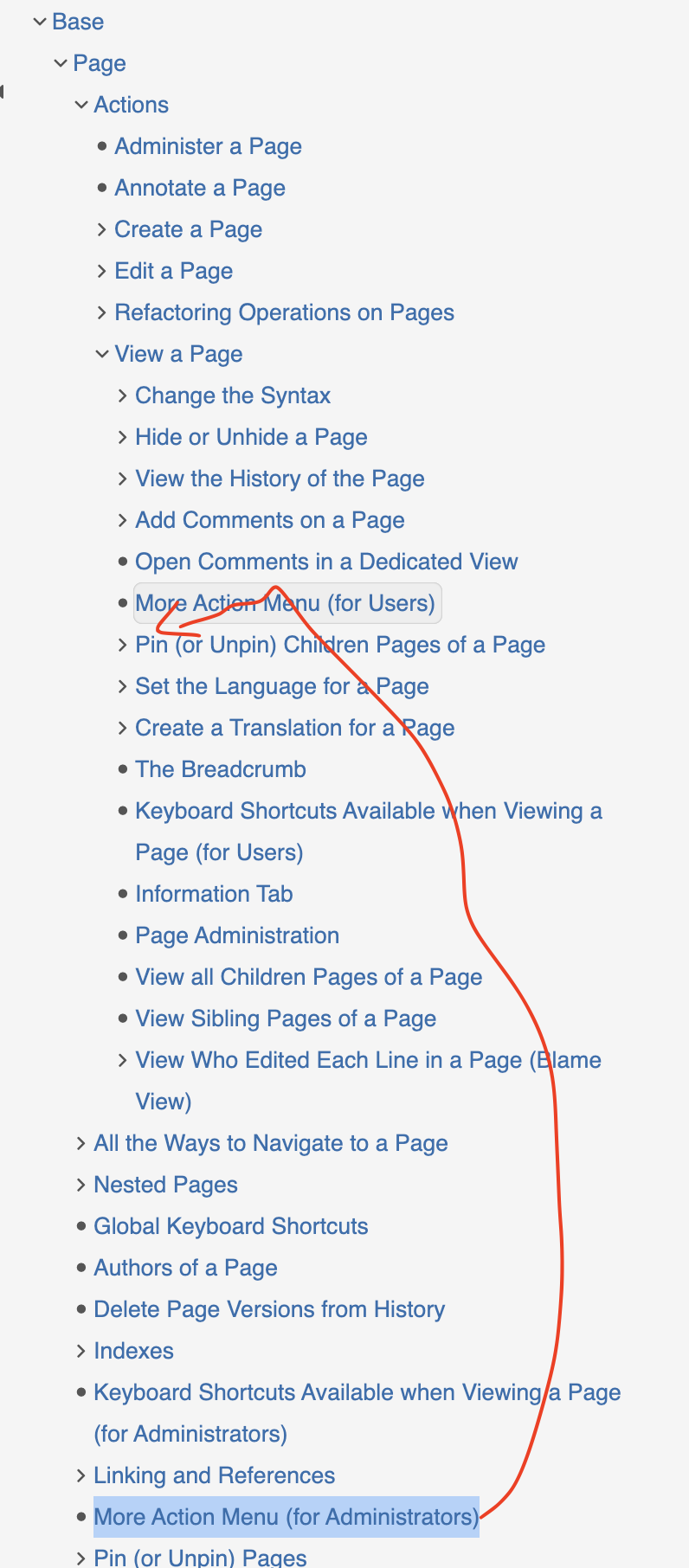
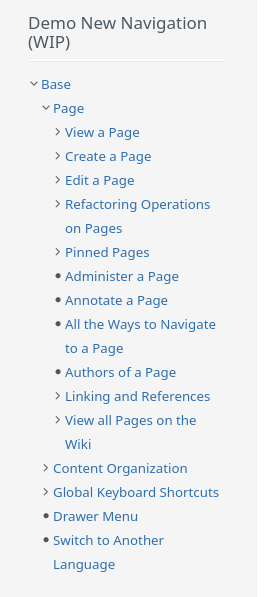
I’ve made a slight modification to the existing navigation to simulate Option 3, where we mix the pages for all targets. Specifically, I’ve adjusted the navigation for the “Base” topic and the “Page” subtopic by moving the child pages from the Administer section to the User section. This modification is a demo to visualize how this option would work in practice.
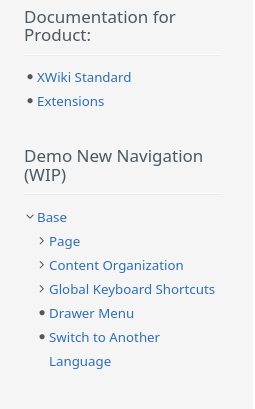
Update of proposal: I’ve implemented a Demo New Navigation in the panel, where Option 3 is simulated, mixing the pages for all targets. I’ve adjusted the navigation for the “Base” topic and the “Page” subtopic by moving the child pages from the Administer section to the User section.
Observations:
- There are too many subtopics, which might make the navigation too complicate. After mixing all the documentation pages for all target groups under the same topic, we’ll likely need to reorganize the child pages where it makes sense. For example, I’ve grouped related page actions under the “Actions” subtopic, added “Indexes”, etc.
Advantages:
- Can be combined with Idea 2 in the future to have a visual separation of doc pages.
- Can be combined with pinning the pages per targets (display user doc first, then admin, ..).
- Can be combined with Idea 3 in the future to filter the target.
For example:
├─ Page
│  ├─ Edit a Page
│  ├─ Simple and Advanced Editing
│  ├─ Administer a Page
├─ Like
│  ├─ Like (or Unlike) a Page
│  ├─ Administer Like Preferences
│  ├─ Like API
Issues:
- Sorting the pages to display first pages for Users, then for Administrators, then for Developers is needed, meaning custom code is needed. This can be achieved also by pinning the pages, but then every page must be pinned => Hard to maintain.
- Many irrelevant pages for the user displayed in the page hierarchy, making it harder to find what they are looking for.
Idea 2: Use icons per targets
For example:
 for user documentation pages,
 for administrator documentation pages,
- One of the following options for developer documentation pages:
 /
/  /
/  /
/  .
.
Advantages:
- Nice visual separation for each target.
Issues:
- Custom code is needed to display in the navigation the icons.
- Sorting the pages to display pages in order (User > Admin > Devs) / or having to pin them.
Idea 3: Filter in a separate section of the panel the target
Add a dedicated section in the panel with three target options (User, Admin, Developer), each with a checkbox. Readers can select one or more targets, and the content tree below dynamically updates based on the selected audience. This allows to have all docs under the same topic, without adding a separate level. If no target is selected, all docs are displayed in the navigation.
Advantages:
- Probably the best solution for the readers as it’s flexible.
- Keeps all related documentation under a single topic
- Can be combined with idea 1 and idea 2.
Issues:
- Complex to implement and creates a lot of issues to solve.
- Custom code is needed for implementing the filtering (extending or reworking the documentation tree macro).
- Clarifications for the filtering behaviour are needed, as these factors introduce complexity in the system’s design and implementation:
- What if a selected target has no pages in a topic? Should empty topics be shown or hidden?
- For example: What happens if the reader selects “Developer”, but the topic has no developer pages. → Do we keep the topic and display nothing under it? Do we filter out also the topics that have no subpages for that target?
- If a child page matches the filter but the parent does not, should the parent be displayed?
- For example: The user selects “Administrator” as the target. The navigation lists “Administer a Page” targeted for admins, but the parent page “Page” is dedicated for Users. Is “Page” also displayed in the navigation?
- When navigating to a page outside the selected target, should the navigation filter reset, update, remain the same?
- For example: If a reader selects “User” (filtering the navigation to User documentation ) and then clicks a link to a page targeted for Administrators, how should the navigation behave? Should the filter reset, adapt to the new page, remain the same as selected previously ?
- What if a selected target has no pages in a topic? Should empty topics be shown or hidden?
- Different breadcrumb than the navigation if at least one target is selected. (The breadcrumb will list all topic pages for all targets at the same level).
- Currently, each topic page (e.g. “Base” has a type and a target (check proposal: When to use landing pages ). Landing pages for topic pages were originally removed to allow topic pages to have the DocClass object and appear as proper documentation entries in the LiveData. The topics and subtopics pages targeted for users are different from the ones targeted for administrator, (e.g. “Page” for Users is different from the “Page”). This raises a key question: should we revert to using landing pages again for topic pages, or support multi-target topic pages (i.e., allow a single page to be associated with multiple targets)?
Note: The options above will apply to both documentation for “XS” and “Extensions”.
Our preference (mine and @vmassol 's) goes towards option 3, as it provides the most flexibility and can be further improved in the future by incorporating the ideas mentioned above. In contrast, the other options are more rigid and don’t offer the possibility to be improved.
WYT about this new approach of organizing documentation by topic and then by type? Which option do you consider more effective, and do you have any alternative suggestions?
Thanks!